3D Sketchup import wizard
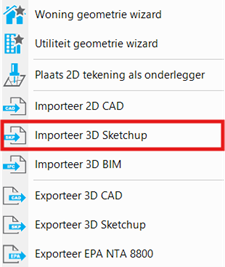
To ensure the successful import of a 3D SketchUp model, there are a few tips that the Vabi Elements team recommends applying.
Successful import of SketchUp files: tips and tricks
Key points to consider:
- The SKP file must be created with version 2013 or later.
- The SKP file can contain an average of up to ±2000 spaces for import into Vabi Elements. (Depending on your computer specifications)
- Ensure that spaces are connected to each other, without white space between walls, floors and/or ceilings.
- Ensure that spaces are defined as “Solid Groups”.
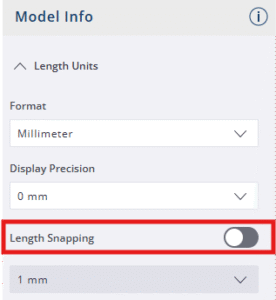
1. Disable “Length Snapping”!
Small, unintentional deviations in a SketchUp model can lead to major problems during import into Vabi Elements. To ensure accuracy, it is advisable to disable the “Length Snapping” function in the “Model Info” window. This will prevent a space from being drawn larger than intended. Vabi Elements will only import the model correctly if a space is correctly “enclosed” and there are no deviations in the dimensions.
2. Draw simple spaces based on volume!
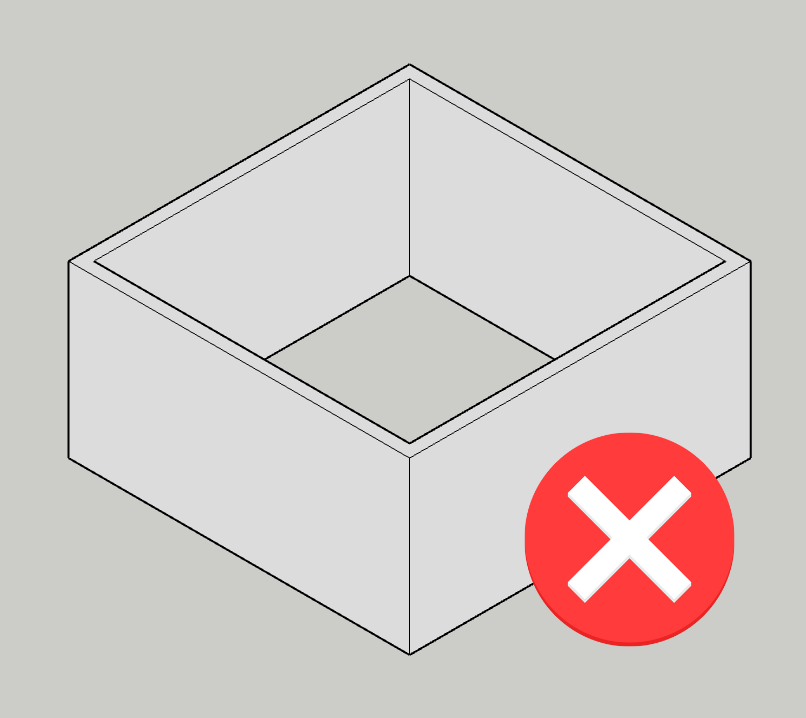
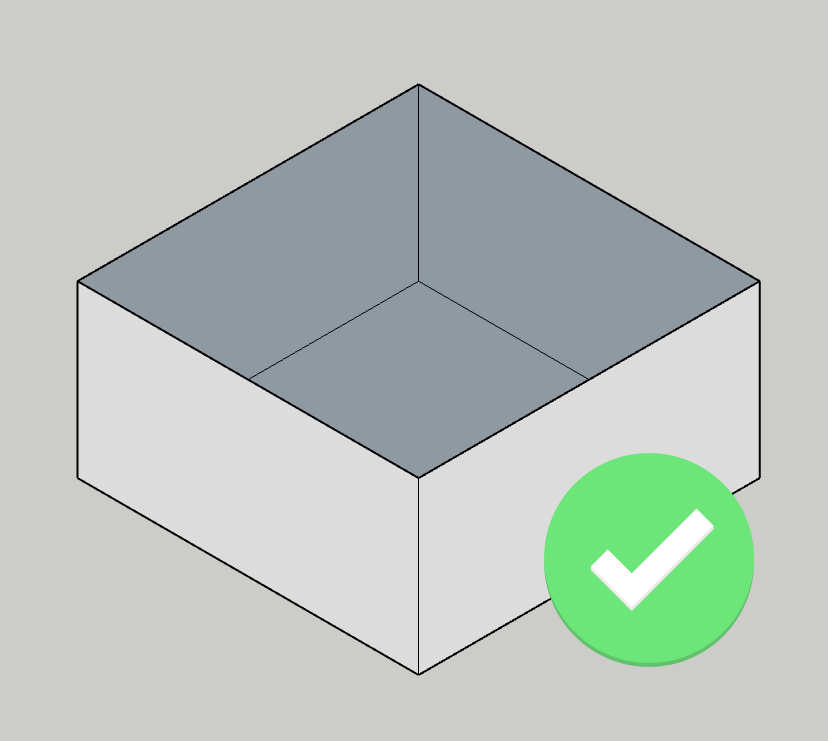
Spaces in 3D SketchUp must not contain a wall thickness, separate details, overlapping elements or overly complex geometry. Vabi Elements will only search for simple spaces that show a volume, as shown in the figures below.
3. Include windows and doors in the import by drawing surfaces on walls!
Although it is not possible to directly load windows and doors with the Vabi Elements import, there is a clever trick to easily add them in Vabi Elements:
1) Draw window and/or door surfaces on the relevant walls and roofs in 3D SketchUp.
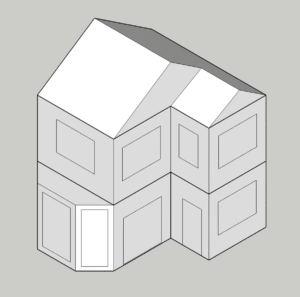
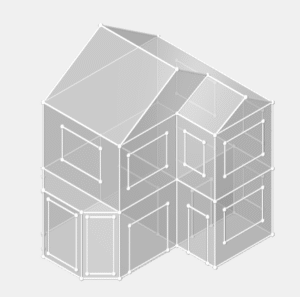
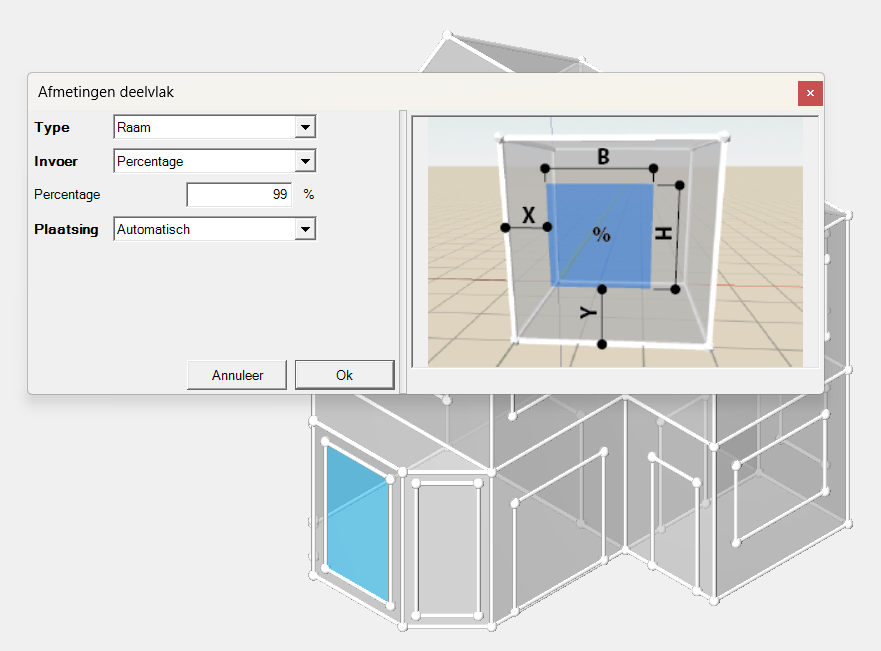
2) Select the frame/door function in Vabi Elements and choose a surface where the window or door should be placed.
3) Select the “percentage” input and set it to 99%. After clicking OK, the window or door will appear.
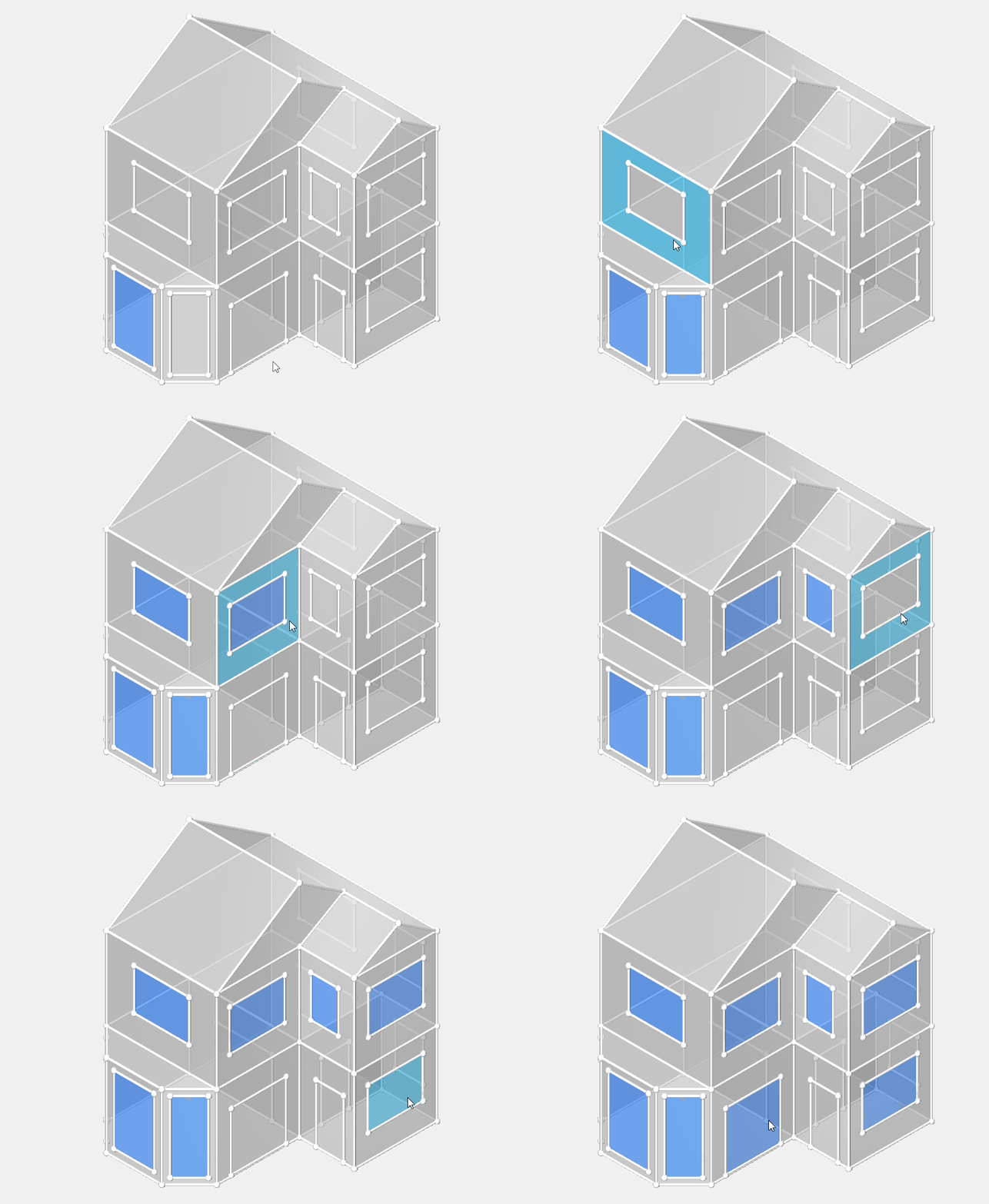
4) Repeat steps 2 and 3 by holding down CTRL and then clicking on other surfaces where a window or door should also appear. This will copy the previous entry exactly to another surface.
5. Create groups and check the “Solid Group” status!
Ultimately, the “groups” must be designated as “Solid Groups”. This information can be found in the “Entity Info” window (on the right-hand side of the screen or by right-clicking).
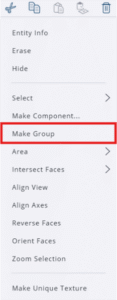
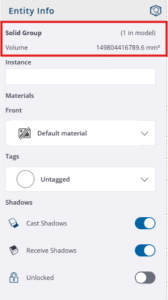
Please note: Include inscribed surfaces for doors and windows when creating a “Group”. If these are not included, no “Solid Group” will be created.
6. Do not use ‘OuterShell’ unless there is no other option!
We recommend refraining from using the “OuterShell” function when using 3D SketchUp. ‘OuterShell’ is an advanced function with a specific order of operations that can be used to remove extra drawn lines after spaces have already been converted to “Solid Group”. This makes the function somewhat redundant for the Vabi Elements import, especially if you have drawn in the surfaces for windows and doors, as those surfaces will be removed. If the function is used incorrectly, room names and numbers will be lost in Vabi Elements, which will ultimately lead to additional work! In some cases, entire rooms are not included because “OuterShell” has been applied incorrectly in SketchUp.